


-normal.webp?v=1718792130)
I’ve been using Figma for years, and over time my process has shifted from manually hacking around problems to building a toolkit of plugins that quietly save me hours. These aren’t just nice-to-have add‑ons—they’ve become part of my everyday workflow. They help me audit accessibility, generate colors, pull in real data, and even reverse‑engineer websites without leaving Figma.
Here are nine plugins that have made the biggest difference and why they might do the same for you.
1. HTML to Design — Clone Any Website Into Figma
This plugin lets you import an existing webpage into Figma as editable layers. Instead of recreating layouts by hand, you paste the site’s URL and get a fully structured file—images, text, and basic styles included. I’ve used it to analyze competitors’ landing pages, rebuild old pages for redesigns, and even archive project versions visually. It’s not perfect with complex interactions, but for static layouts it’s a huge time‑saver.
2. Beautiful Shadows — Realistic Light and Depth for Designs
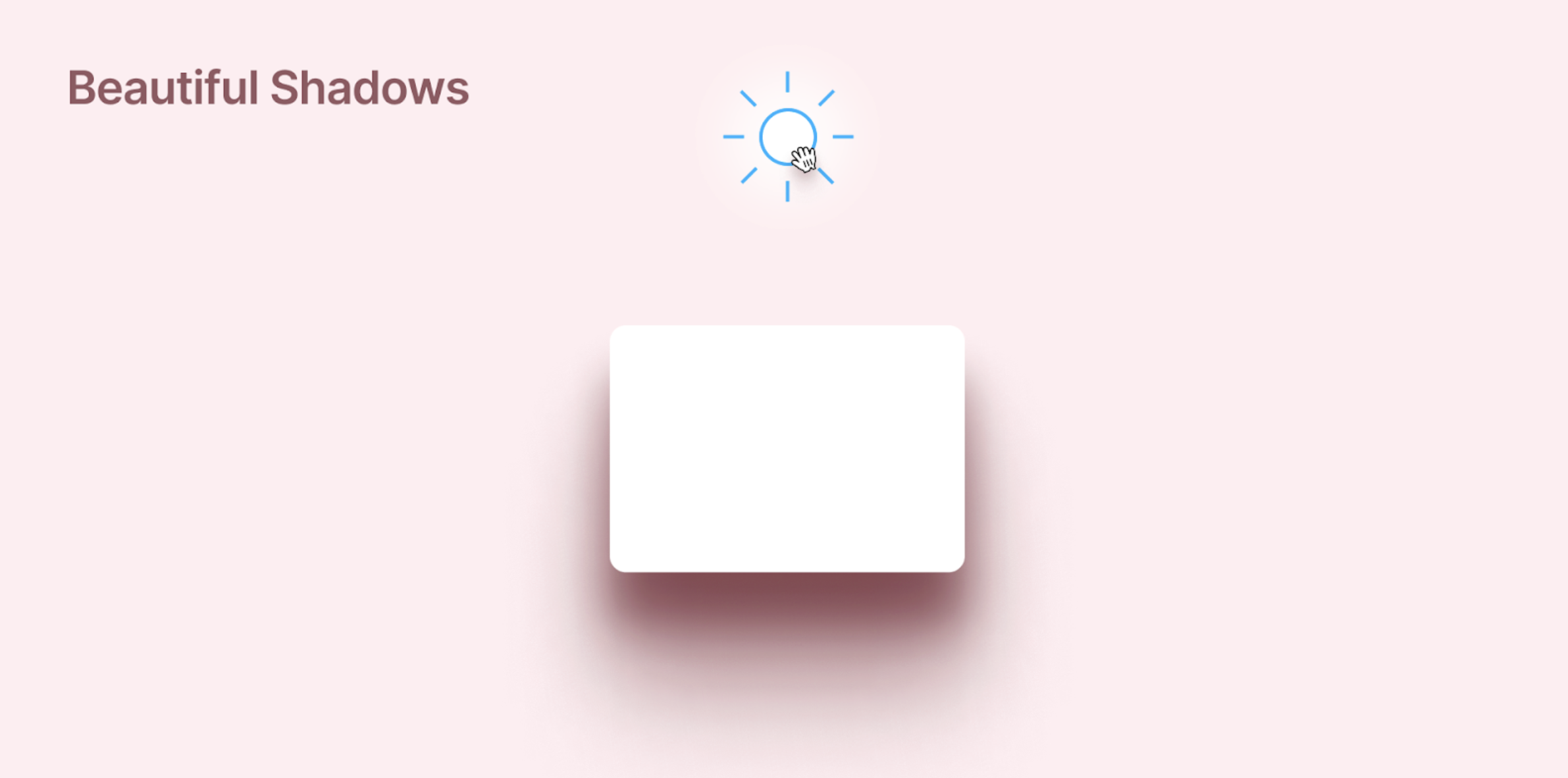
Figma’s default shadow controls are basic. Beautiful Shadows solves that by simulating light direction and layering multiple shadows for a more realistic effect. The result is depth that feels natural rather than flat. I lean on it when designing cards or modal windows where subtle lighting helps components stand out without looking fake or heavy-handed.
3. Stark — Contrast and Accessibility Checker
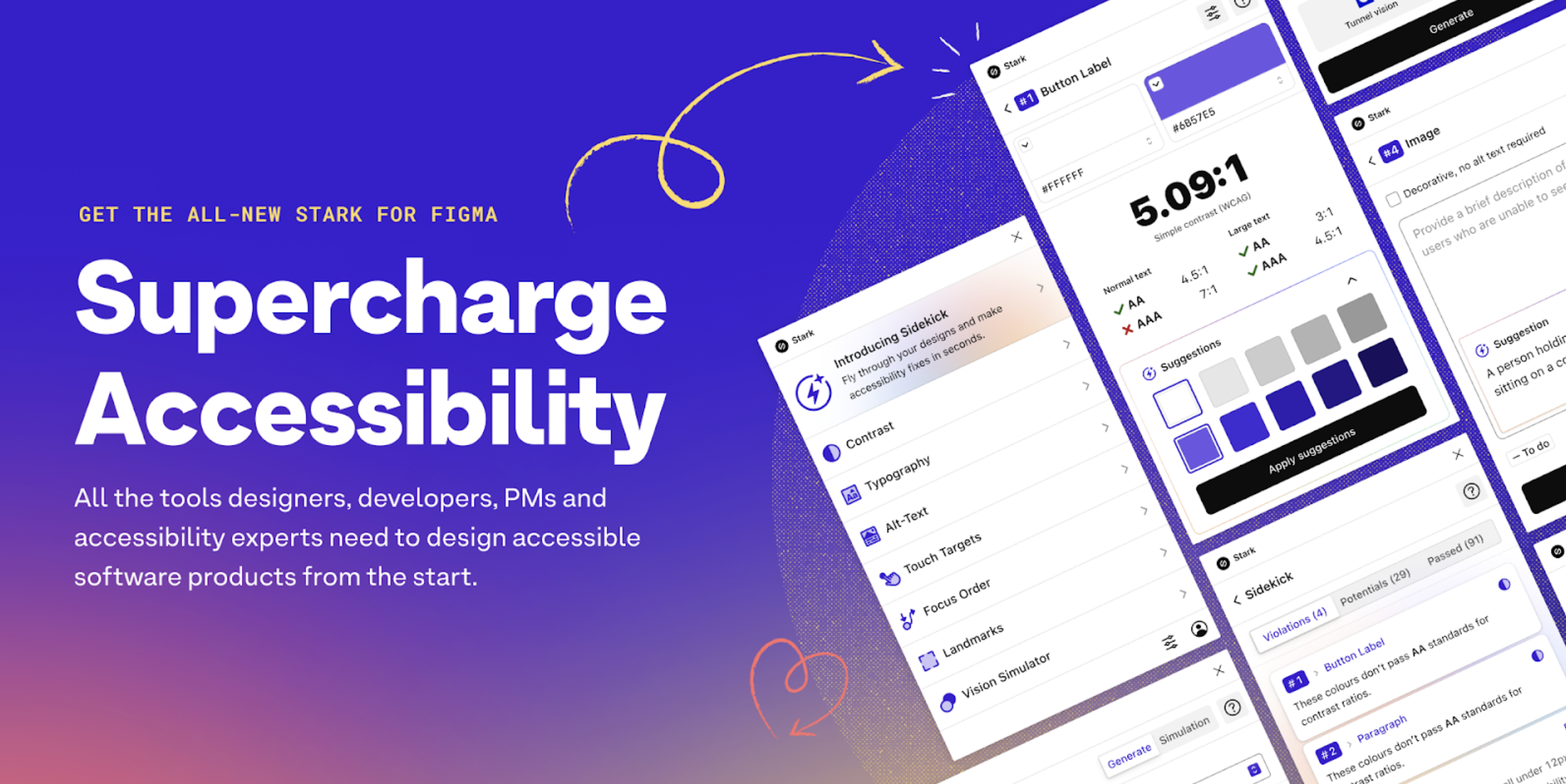
Accessibility checks are often left until late in a project, which usually means more rework than necessary. Stark brings those checks into the design stage. It measures color contrast, flags accessibility issues, and even simulates different types of color blindness so you can see what users might experience. When I’m working on buttons or text overlays, it helps me quickly validate whether my color choices meet WCAG standards.
4. Photopea — Image Editing Without Leaving Figma
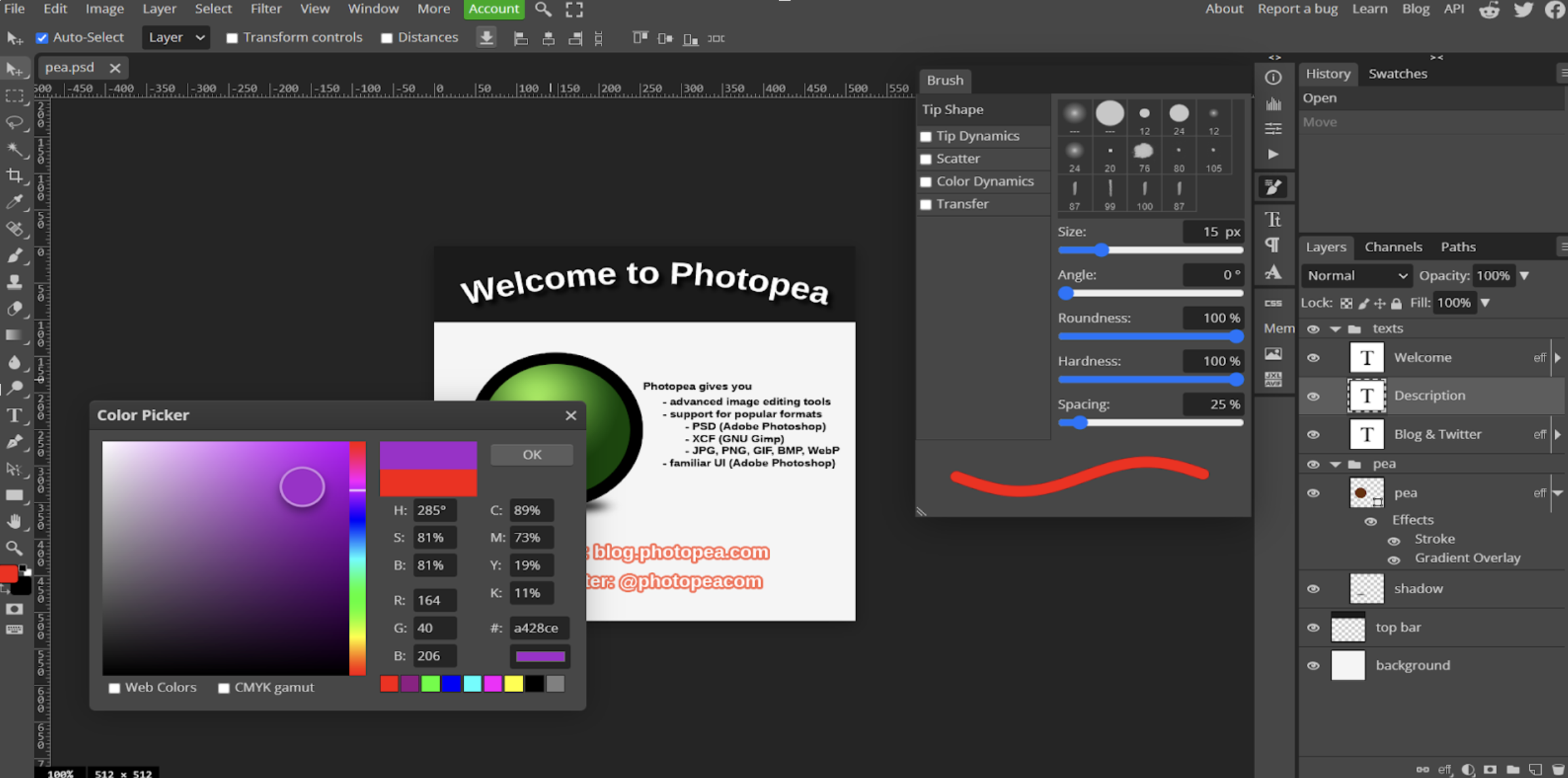
Photopea brings a Photoshop‑like raster editor directly into Figma. Instead of exporting an asset, opening Photoshop, making a small change, then re‑importing, I can handle quick photo edits—like removing a background or adjusting levels—without leaving the file. It’s not a replacement for full‑on image work, but it covers 90% of the small fixes I need during UI design.
5. Instance Finder — Locate Components Across Files
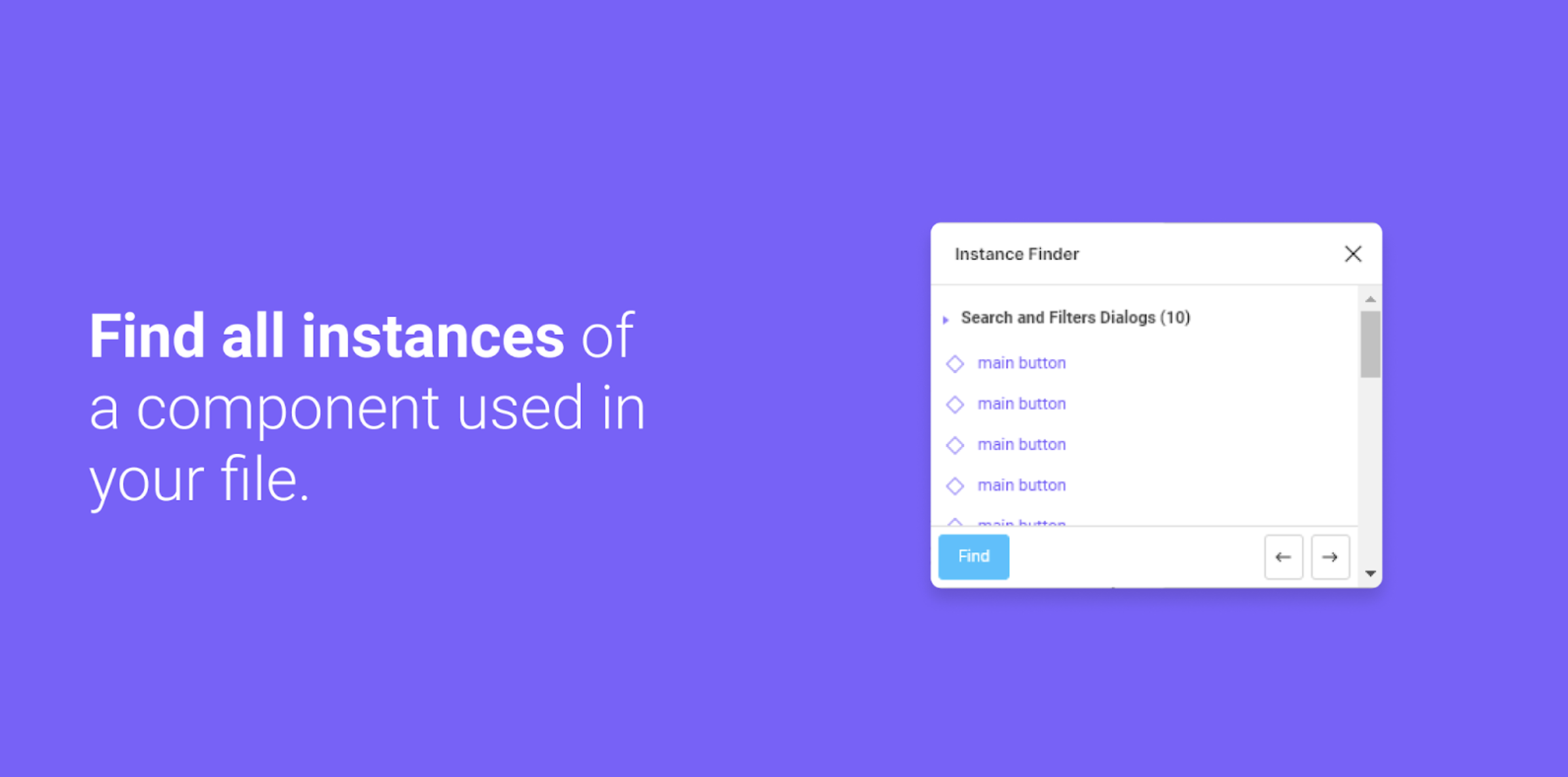
Large files with dozens of components can get messy fast. Instance Finder scans your project and lists every place a component is used, organized by page and frame. This is especially useful when updating design systems: I can see where a button or icon appears, make changes to the master, and check that all instances are updated correctly. It’s one of those plugins you don’t realize you need until you’re deep in a cleanup session.
6. Foundation: Color Generator — Build Color Palettes Instantly
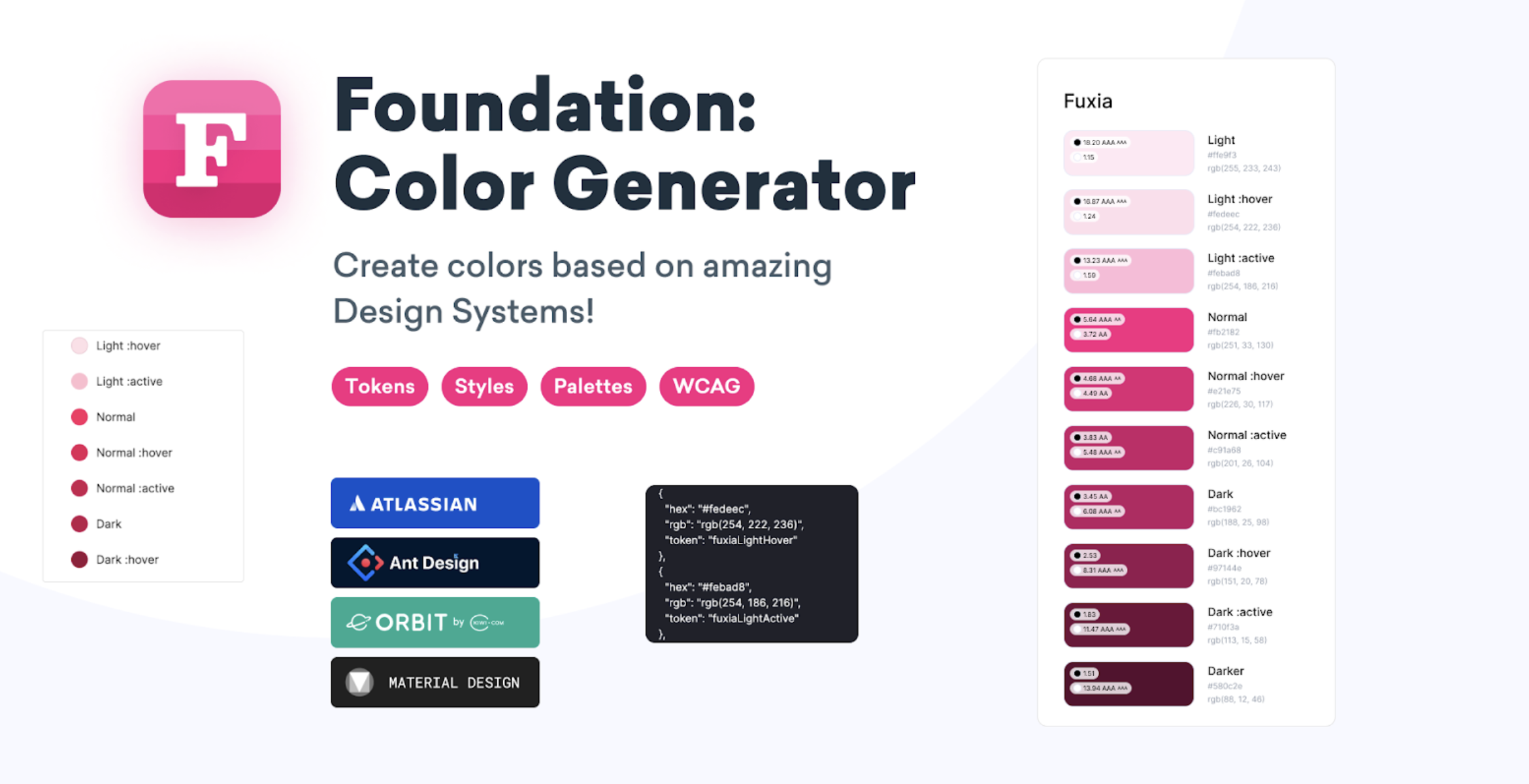
Building a color system manually can take forever. Foundation generates full palettes—light, mid, dark—starting from a single base color. The scales are harmonious, easy to tweak, and ready to turn into tokens or styles. I use it early in projects to create a flexible color foundation that stays consistent as the design evolves.
7. LottieFiles — Bring Motion Design Into Figma
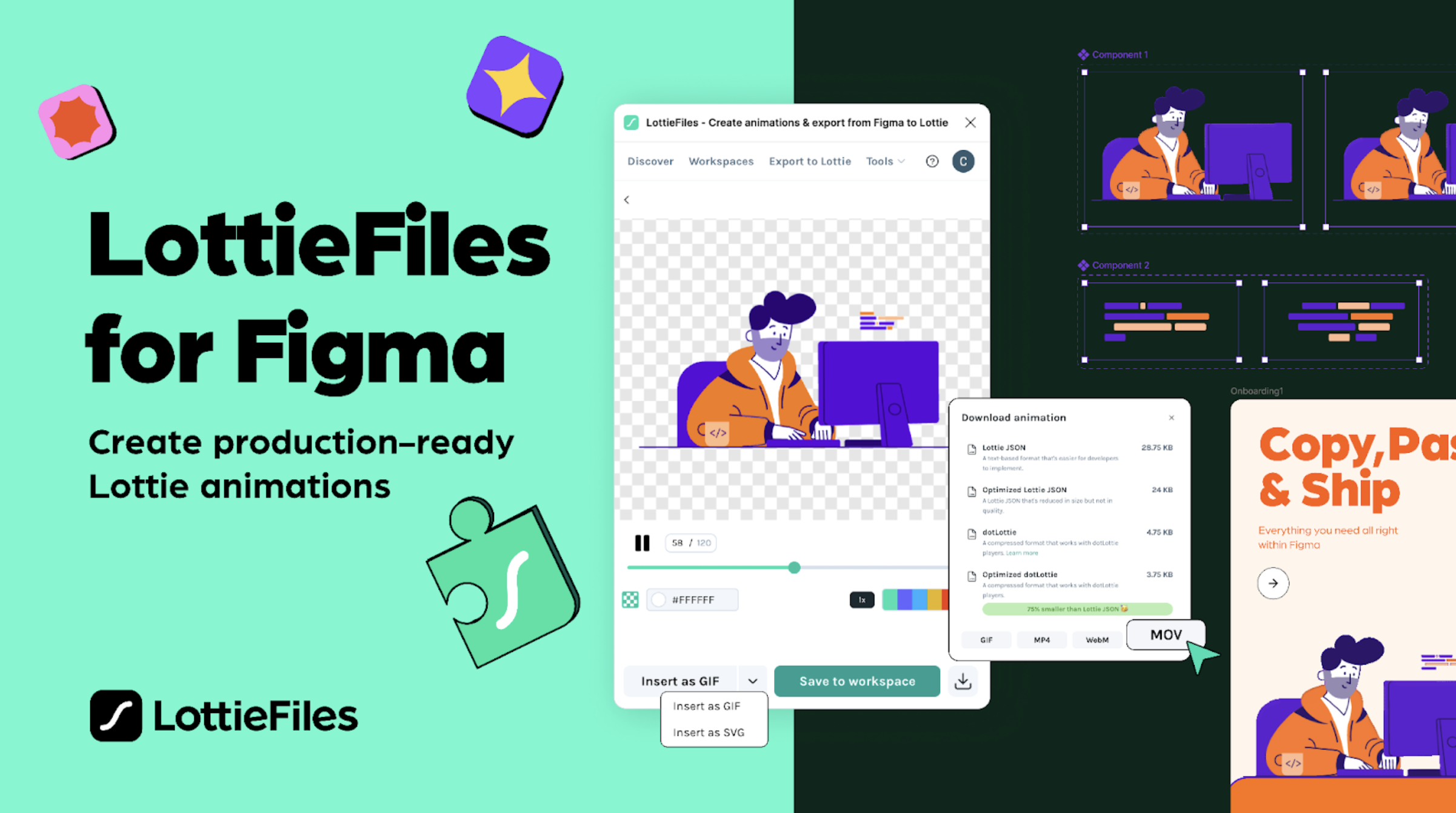
Animations used to be an extra step outside of Figma, but LottieFiles changes that. You can create or import vector animations, preview them, and export JSON files ready for production. It even includes AI tools to help generate motion ideas or convert static vectors to animated assets. When I need small micro‑interactions, like an icon that pulses on hover, this is the fastest path from concept to implementation.
8. Content Reel — Realistic Data for Prototypes
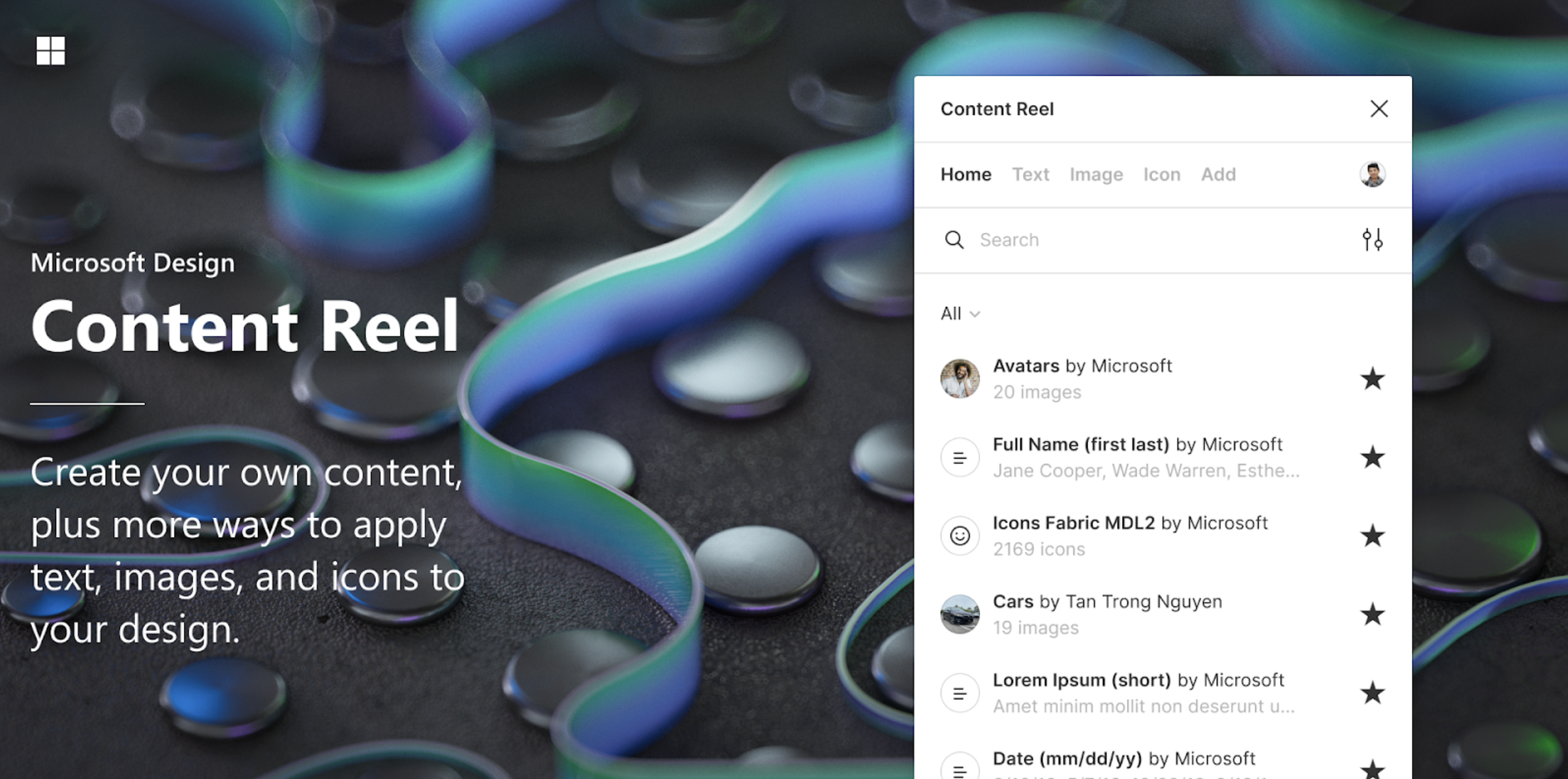
Instead of filling designs with lorem ipsum or grey boxes, Content Reel lets you drop in realistic names, avatars, addresses, or any custom dataset you create. Prototypes instantly feel more real and help stakeholders understand context better. I often use it when designing profile pages, card grids, or anything that benefits from believable placeholder content.
9. Iconify — Huge Library of Open‑Source Icons
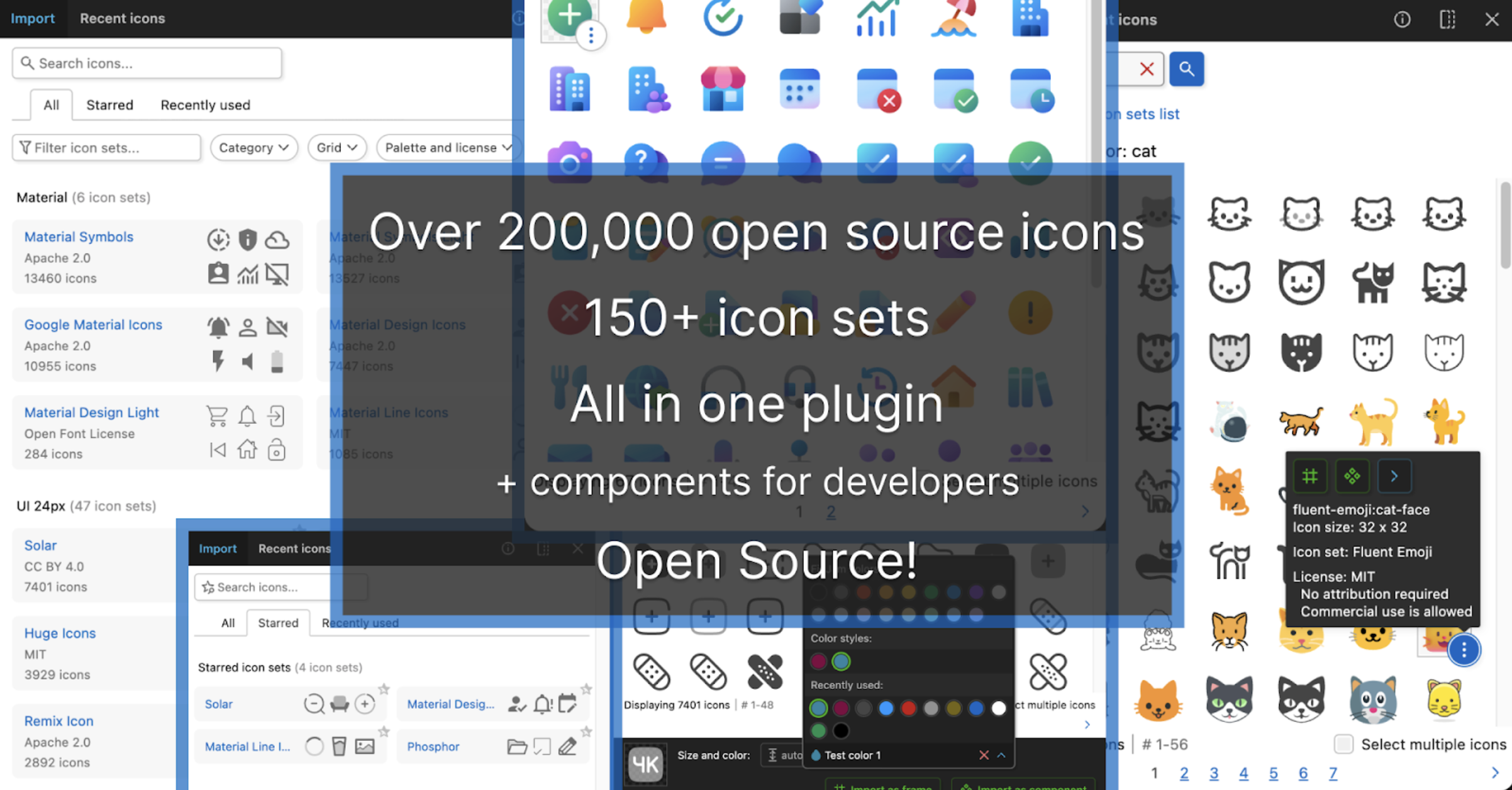
Iconify connects Figma to a massive library of open‑source icons. You search, drop them straight into your file, and they’re already in vector format for easy customization. No hunting through multiple sites or dealing with license questions. When I need a simple gear, search, or arrow icon, this is my go‑to.
Conclusion
Taken together, these plugins cover very different pain points in my process—everything from repetitive tasks like filling content or finding components to bigger concerns like accessibility and color systems. They’re not must‑installs for everyone, but if you work in Figma regularly, it’s worth trying a few to see which ones actually fit your flow.

.jpg?v=1761303254)
.jpg?v=1761303275)

-hero.webp?v=1789757974 "How Much Does ‘Bad Design’ Really Cost Your Business?")